What you need
- A Google account (for sign-in and Google Alerts)
- A Raindrop.io account (to save bookmarks)
Table of contents
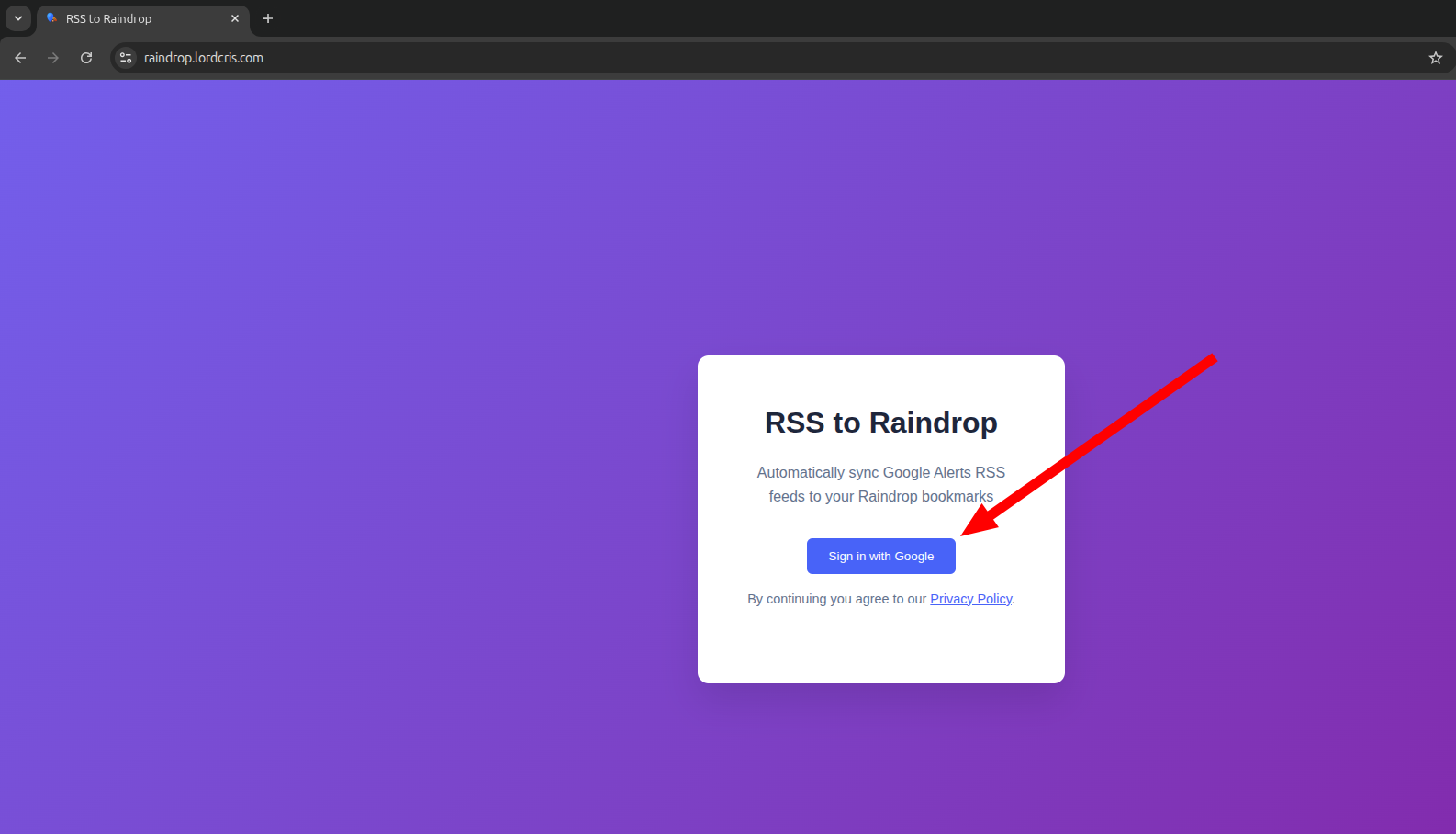
1) Sign in with Google
- Open the app home page and click Sign in with Google.
- Choose the Google account you want to use.
- On success, you’ll see the dashboard.
2) Connect Raindrop
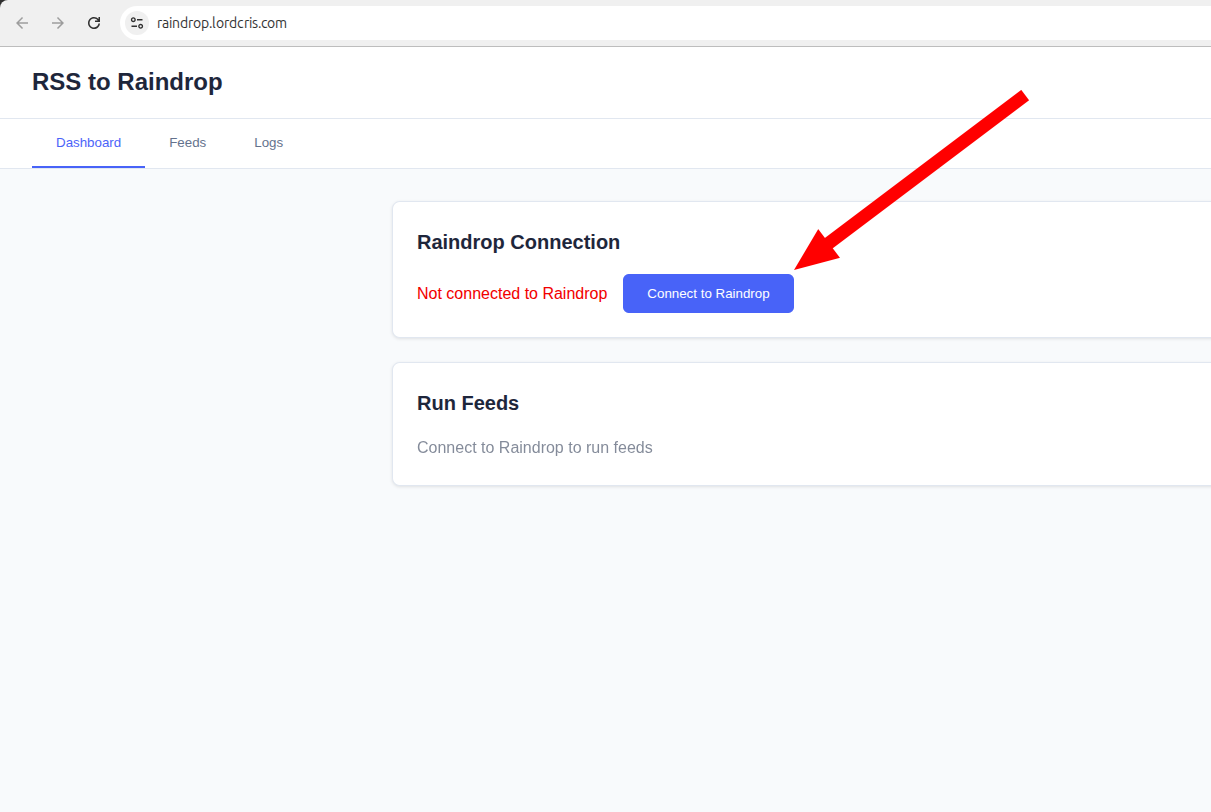
- On the dashboard, find the Raindrop connection button.
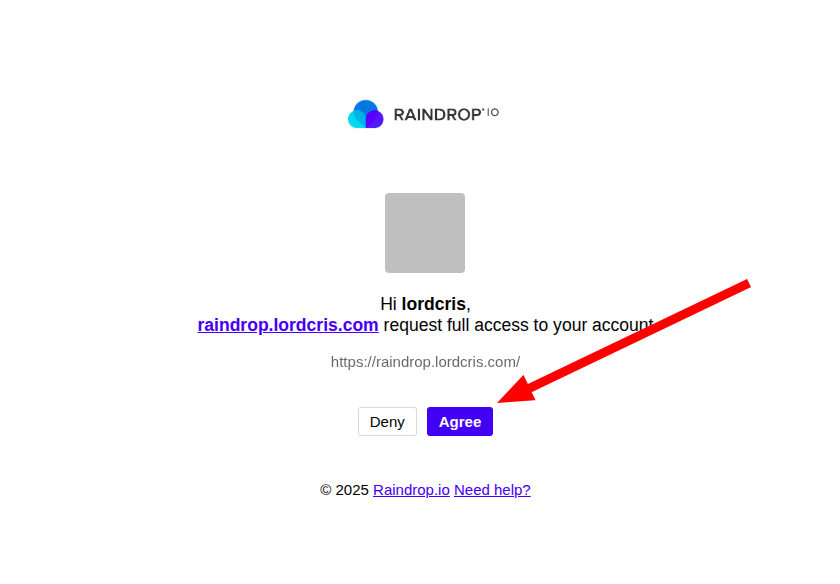
- Click Connect to Raindrop and approve access.
- When connected, you’ll see your Raindrop email and a Refresh Collections button.
3) Turn Google Alerts into RSS
Google Alerts can deliver results as an RSS feed which this app reads. Create a new alert or convert an existing one:
- Visit google.com/alerts.
- Create a new alert or click the edit (pencil) icon on an existing alert.
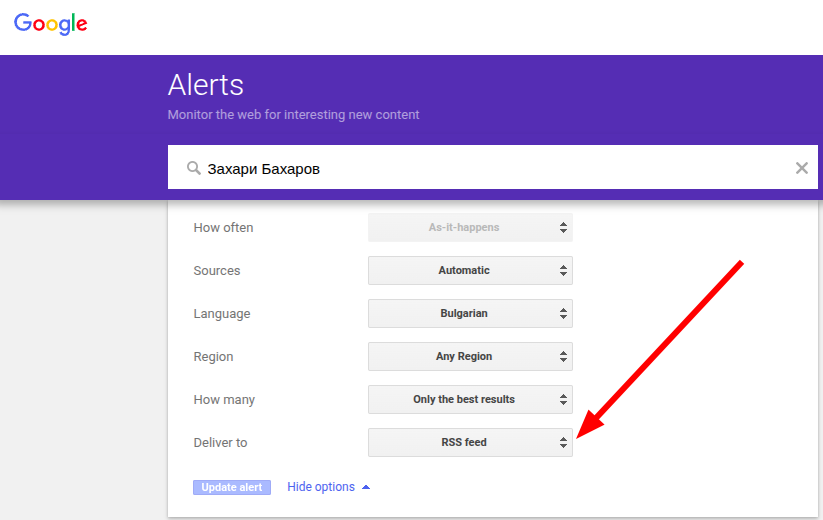
- Click Show options.
- Set Deliver to → RSS feed.
- Click Update alert (or Create Alert for a new one).
- Back on the alerts list, click the RSS icon next to the alert to open the feed.
- Copy the RSS feed URL from your browser’s address bar.

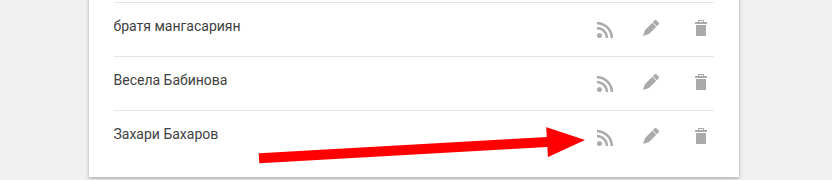
If you don’t see the RSS option, make sure you’re on
desktop web (not the Google app) and signed into the same Google account.
4) Add the RSS feed to the app
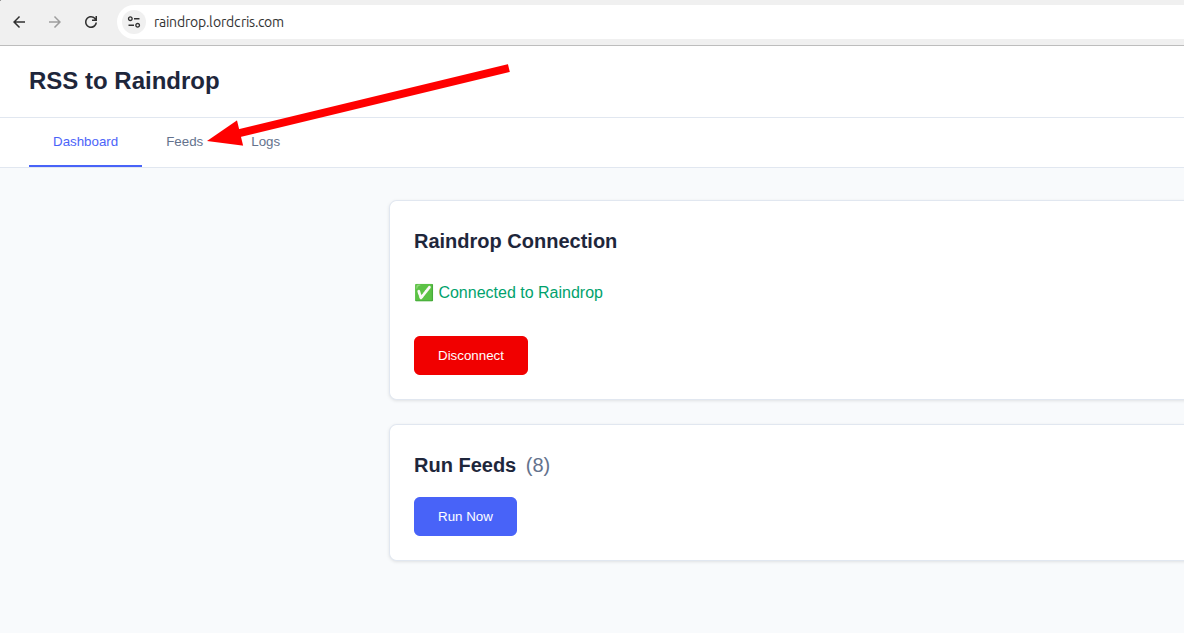
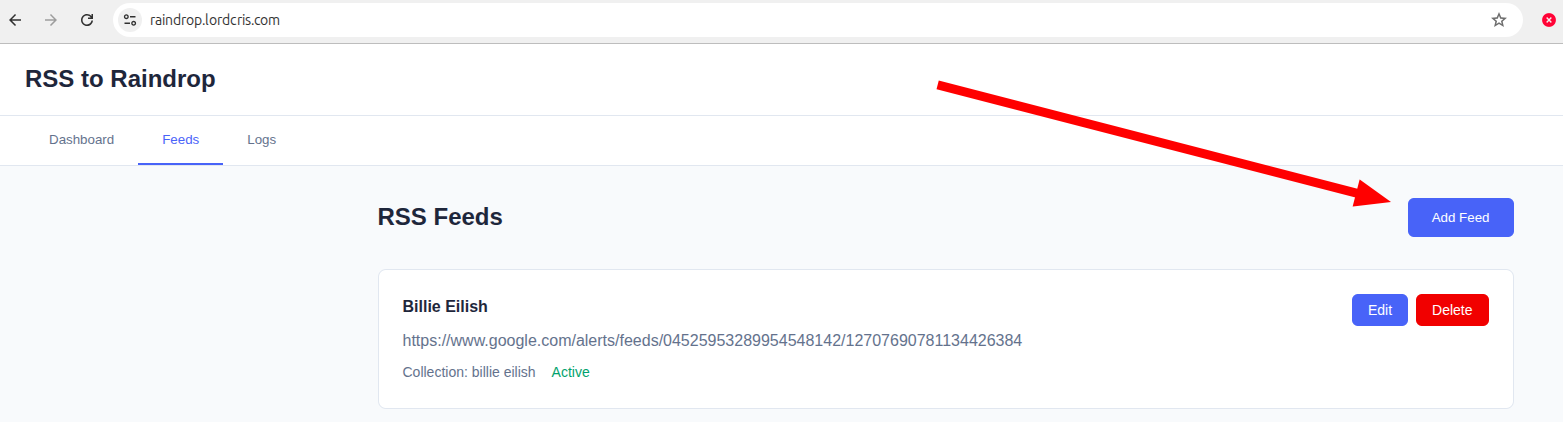
- In the app, open the Feeds tab and click Add Feed.
- Paste the Google Alerts RSS URL you copied.
- Choose a Raindrop Collection, or leave it as Unsorted.
- (Optional) Enter comma‑separated Tags that will be applied to new items from this feed.
- Click Save.
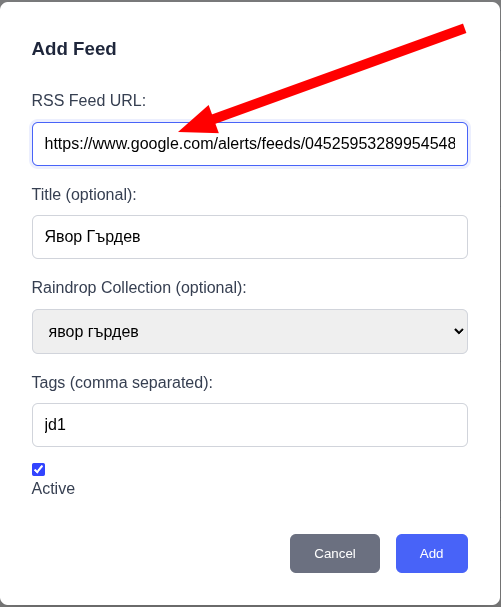
You can also create a new collection from the dropdown if you
don’t see the one you need.
5) Run now and verify bookmarks (Optional)
- From the Dashboard, click Run Feeds.
- Wait a moment while the app checks your feeds and adds new items.
- Open Raindrop.io and verify the bookmarks appear in the chosen collection (or Unsorted) with your tags.
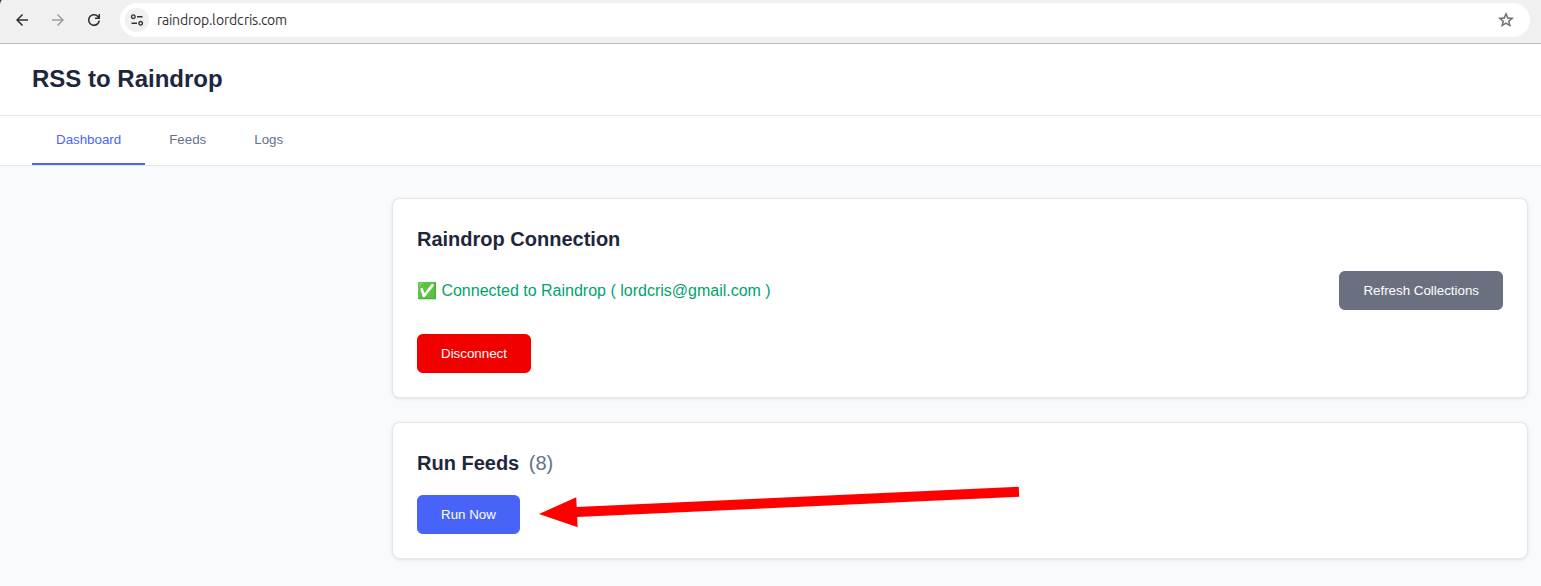
The application runs automatically every four hours, adding
any new items from your feeds to Raindrop.
6) Collections and tags
- Collections are fetched from your Raindrop account. Use Refresh Collections after changes in Raindrop.
- If a collection is deleted in Raindrop, affected feeds will fall back to Unsorted.
- Tags in a feed are applied to every new item from that feed; you can edit them later in Raindrop too.
Troubleshooting
- Can’t sign in: Ensure third‑party cookies aren’t blocked and try a normal (non‑incognito) window.
- Raindrop connect fails: Click connect again; if it persists, disconnect and reconnect. Verify your internet connection.
- No items added: Open Logs to see if items were skipped as duplicates; check that your Google Alerts feed actually contains new links.
- Collections missing: Click Refresh Collections or create the collection from the dropdown.